Email stage
The Email stage sends a verification or action email from within a flow.
About the email stage
This stage is used for email verification, account recovery, invitations, and similar flow steps where authentik should send a tokenized link or message to a user.
The email is normally sent to the current pending_user, but the target address can be overridden from flow context.
When an email cannot be delivered immediately, authentik retries delivery through its background worker.
Configuration options
- Use global connection settings: use authentik's global email configuration instead of stage-specific SMTP settings.
- SMTP Host: SMTP server hostname for stage-specific delivery.
- SMTP Port: SMTP server port.
- SMTP Username: optional SMTP username.
- SMTP Password: optional SMTP password.
- Use TLS: enable STARTTLS for the SMTP connection.
- Use SSL: enable SMTPS for the SMTP connection.
- Timeout: SMTP connection timeout in seconds.
- From address: sender address used for flow emails.
- Account Recovery Max Attempts: maximum number of recovery emails allowed in the configured time window.
- Account Recovery Cache Timeout: time window used for recovery-email rate limiting.
- Activate user on success: set the identified user's
is_activestate toTrueafter they return with a valid email token. In a recovery flow, this setting allows an inactive user to reactivate their account through email verification. Disable this setting if reactivation must remain an administrative action. Disabling it does not prevent the user from receiving a recovery email or changing their password. - Token expiry: how long the email token remains valid.
- Subject: subject line used for the email.
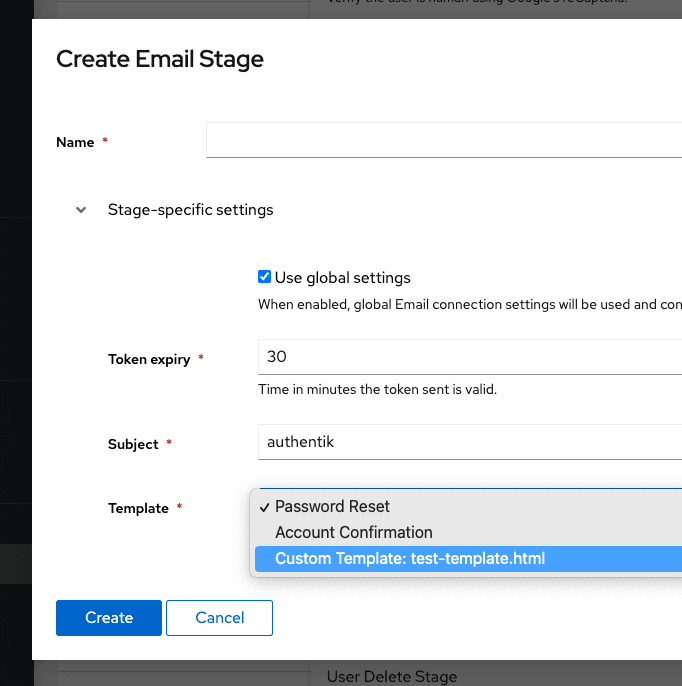
- Template: template used to render the email body.
Flow integration
Use this stage in recovery, enrollment, verification, or invitation flows where an email should be sent before the flow continues.
By default, the message goes to the current pending_user. To override the destination, set email in the flow plan context before the stage runs:
return True
You can also source the address from prompt data or another user attribute:
request.context["flow_plan"].context["email"] = request.context["prompt_data"]["email"]
return True
request.context["flow_plan"].context["email"] = request.context["pending_user"].attributes.get("otherEmail")
return True
Notes
Rate limiting
The recovery rate-limiting fields only affect recovery-style email sends. They limit how many recent attempts a user can trigger within the configured time window.
Recovery and account enumeration
When an Identification stage does not find a user, it can create a placeholder user if Pretend user exists is enabled. In a recovery flow, the Email stage shows the same Email sent. challenge for this placeholder user without sending an email or creating a recovery token. This behavior prevents the recovery response from disclosing whether the identifier belongs to an account.
An existing inactive user is not a placeholder user. By default, the Email stage sends that user a recovery email and creates a recovery token. Deactivating an account prevents authentication, but it does not automatically prevent the user from recovering their account.
You can use a policy bound to a Deny stage to block inactive users before the Email stage. However, the denial response differs from the response for an unknown or active account and can disclose whether an account exists or is inactive. For configuration details and this security tradeoff, see Block password recovery for inactive users.
Custom templates
You can provide custom email templates.
You can also add a matching .txt file next to the .html file to send multipart text and HTML emails.
- Docker Compose
- Kubernetes
Place custom templates in the custom-templates directory next to your Compose file. The template becomes selectable in the Email stage configuration.
Create a ConfigMap with your email templates:
apiVersion: v1
kind: ConfigMap
metadata:
    name: authentik-templates
    namespace: authentik
data:
    my-template.html: |
        <tr>...
Then mount it into the worker container from your Helm values:
volumes:
    - name: email-templates
      configMap:
          name: authentik-templates
volumeMounts:
    - name: email-templates
      mountPath: /templates
If a custom template does not appear in the selector, check the worker logs.
Template variables
Templates are rendered with Django's templating engine. Common variables include:
url: the full URL the user should openuser: the pending userexpires: when the token expires
These templates are rendered with Django's templating engine, so you can also use standard template inheritance and translation tags.
Example template
Templates can extend the base email template and use standard Django template tags. For example:
Each Django {% ... %} tag must stay on one line; a tag wrapped across lines won't parse.
{# This comment is not rendered in the final email. #}
{% extends "email/base.html" %}
{% load i18n %}
{% load humanize %}

{% block content %}
<tr>
    <td class="alert alert-success">
        {% blocktrans with username=user.username %} Hi {{ username }},{% endblocktrans %}
    </td>
</tr>
<tr>
    <td class="content-wrap">
        <table width="100%" cellpadding="0" cellspacing="0">
            <tr>
                <td class="content-block">
                    {% blocktrans %}You recently requested to change your password for your authentik account. Use the button below to set a new password.{% endblocktrans %}
                </td>
            </tr>
            <tr>
                <td class="content-block">
                    <table role="presentation" border="0" cellpadding="0" cellspacing="0" class="btn btn-primary">
                        <tbody>
                            <tr>
                                <td align="center">
                                    <table role="presentation" border="0" cellpadding="0" cellspacing="0">
                                        <tbody>
                                            <tr>
                                                <td>
                                                    <a id="confirm" href="{{ url }}" rel="noopener noreferrer" target="_blank">{% trans 'Reset Password' %}</a>
                                                </td>
                                            </tr>
                                        </tbody>
                                    </table>
                                </td>
                            </tr>
                        </tbody>
                    </table>
                </td>
            </tr>
            <tr>
                <td class="content-block">
                    {% blocktrans with expires=expires|timeuntil %}If you did not request a password change, please ignore this email. The link above is valid for {{ expires }}.{% endblocktrans %}
                </td>
            </tr>
        </table>
    </td>
</tr>
{% endblock %}